
Editing a Chronicle #
One chronicle's whole record: its description, games, staff, documents and lists. Every OWbN site shows what's saved here.
Who can use this #
- The chronicle's HST, CM and ASTs: anyone holding
chronicle/<slug>/hst,cmorstaff. - A satellite's parent CM.
- Site admins, the Exec team and the Web team, on every chronicle and every field.
How to get there #
wp-admin on chronicles.owbn.net → OWBN C&C → All Chronicles → click the chronicle's name.
The screen #
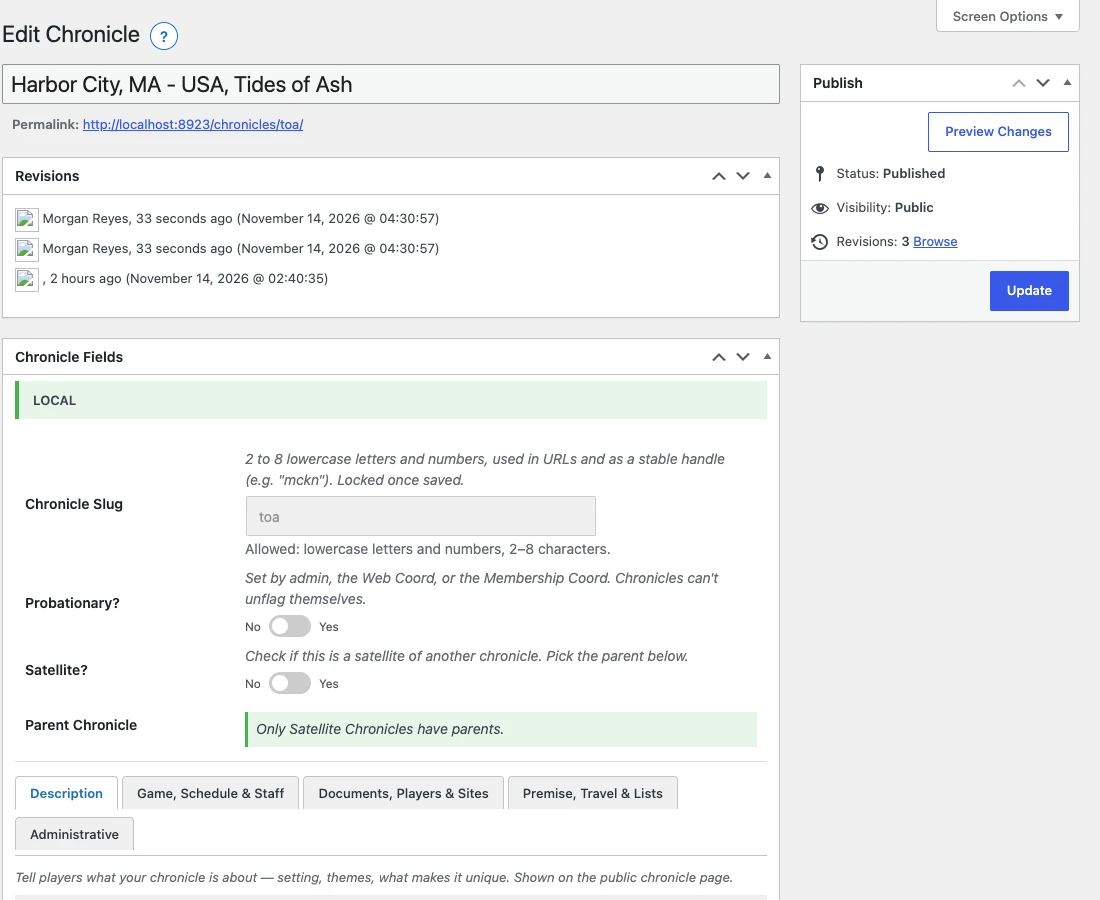
- Title – the chronicle's name. Once saved, only a site admin can change it.
- Bars above the fields:
- LOCAL – you're editing the chronicle's own record.
- Required documents missing – the required documents that still have no link or file.
- Pending Staff Changes – a staff change waiting for approval.
- Chronicle Slug, Probationary?, Satellite? and, for a satellite, Parent Chronicle. Only site admins change these; everyone else sees them greyed out.
- Five tabs. A tab holding a field that didn't save shows ⚠.
- Description – what the chronicle is about, shown on its public page.
- Game, Schedule & Staff
- Genres, Game Type (In-Person, Virtual or Hybrid), Language (the language games are run in; Find a Game on the OWbN website filters by it), OOC Location and Timezone.
- Session List – each regular game or meetup: what it is, how often, the day, check-in and start time. Every Other also needs a start date.
- One-Off Events – single dates outside the schedule.
- HST Info, CM Info and AST Info – the staff, see below.
- Documents, Players & Sites – Document Links, Active Players, Game Sites, Website URL and Social Media URLs. Document Links always holds a row each for House Rules, Disciplinary Policy and Accessibility Policy.
- Premise, Travel & Lists – Premise, Information for Travellers, Staff Lists and Player Lists.
- Administrative – how the HST, CM and ASTs are chosen; Start Date and Region, which only site admins change; and Previous Staff, a read-only log of everyone who has left a staff seat.
- Down the side: Publish, with Update; OWBN Dues, the year the chronicle's dues are paid through, a payment that has arrived and waits for finance to confirm, the status of the current year and the next two (Paid, Waived, Payment pending, Partly paid, Unpaid or Not paid yet), and its last payment; and Revisions.
Staff seats #
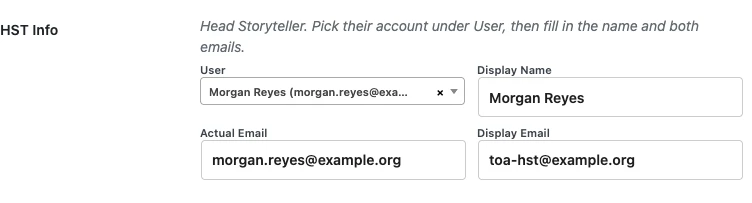
Each person under HST Info, CM Info and AST Info has:
- User – their account on this site, which gets the seat's role. [New User] is someone without an account: their name goes on the record, but no role goes with it.
- Display Name and Display Email – shown on the chronicle's public page.
- Actual Email – their own address. Staff and admins see it here; it never appears publicly or on another site.
- ASTs also get a Role, such as Rules or Plot. Add adds an AST; Remove takes one off.
Picking an account doesn't fill in the names or emails; type them. The CM's Display Email is always <slug>-cm@owbn.net. A satellite has no CM of its own: it shares its parent's.
Common tasks #
Update the chronicle's details #
- Change what you need on any tab.
- Click Update.
Change the staff #
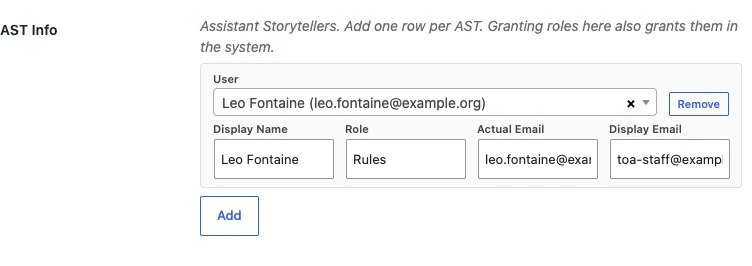
- On Game, Schedule & Staff, change HST Info, CM Info or AST Info: pick each person's account under User, then fill in their names and emails.
- Click Update.
- Unless you're a site admin, the change now waits for approval, and the top of the page says so. Your other changes are saved.
Add a required document #
- On Documents, Players & Sites, open the document's row under Document Links (it's marked "required — needs URL or upload").
- Put in its link, or upload the file.
- Click Update. The Required documents missing bar goes once all three have one.
Undo a change #
- Under Revisions, click Browse.
- Find the version you want and click Restore This Revision.
Things to know #
- Taking someone out of a staff seat ends their role at once, even while the change waits for approval. If the change is rejected, they get the role back.
- A staff change by anyone but a site admin waits for approval, published chronicle or not.
- Restoring a revision leaves the staff and the admin-only fields as they are, unless a site admin restores it.
- Only site admins, the Exec team and the Web team change a chronicle's status or visibility, or move it to the Trash.
- Other OWbN sites keep a copy of the chronicle for up to an hour, so a change can take that long to show everywhere.
Troubleshooting #
- "Sorry, you are not allowed to edit this item." or "You do not have permission to edit this Chronicle." You hold no HST, CM or staff role for it. Ask the Web team.
- "Some fields could not be saved. All other edits WERE saved." The fields named, marked in red with their tab marked ⚠, kept their old values. Fix them and click Update again. A staff seat that has to be filled needs a User, a Display Name and a Display Email.
- "Invalid or duplicate slug." The slug has to be 2 to 8 lowercase letters and numbers, and not already taken.
- A field is greyed out. It's one only a site admin changes.
- Your staff change didn't appear. It's waiting for approval; the Pending Staff Changes bar says so.
- OWBN Dues says "Dues status is unavailable right now." This site couldn't reach council.owbn.net. Try again later.
- OWBN Dues says "Payment received, pending confirmation". The chronicle's payment arrived. OWBN finance confirms it, and the box then shows Paid through. There is nothing for you to do. If you paid a minute ago and still see "No dues paid on record", reload the page.