
Role & Classification Templates #
Saved role lists to fill a vote's access in one click, and the classifications votes are filed under.
Who can use this #
Site admins.
How to get there #
wp-admin → WP Voting → Templates, then Role Templates or Classifications.
The screen #
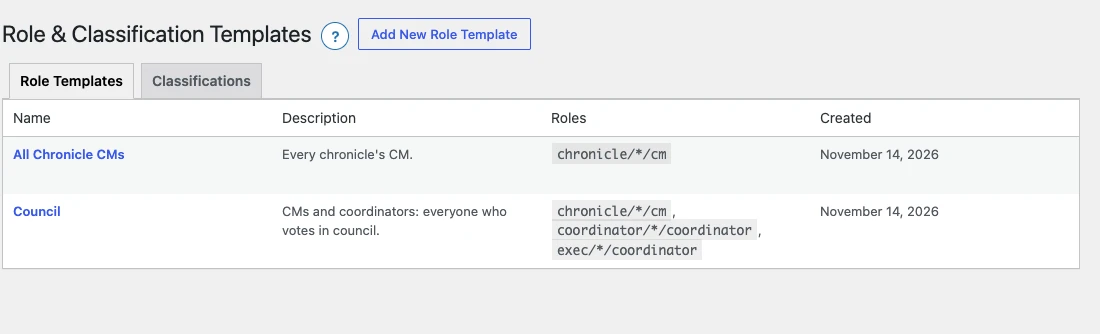
Role Templates
- Add New Role Template.
- One row per template: Name, Description, Roles and Created, with Edit and Delete.
- A template has a Template Name, a Description, and Roles / Groups: role paths, WordPress roles or patterns, one per line, such as
chronicle/*/cm.
Classifications
- Add New Classification.
- One row per classification: its name and Display Order, with Edit and Delete.
- Lower numbers come first in the vote editor's Proposal Type list.
Common tasks #
Make a role template #
- Click Add New Role Template.
- Name it, such as "All Chronicle CMs", and list its roles.
- Click Create Template.
In the vote editor, pick it under Load from template and click Apply.
Add a classification #
- On Classifications, click Add New Classification.
- Give it a name and a Display Order, and click Save Classification.
Things to know #
- Apply copies the template's roles into the vote. Changing the template later doesn't change votes that used it.
- In a role path,
*stands for any one part and**for any number of parts.
Troubleshooting #
- "Failed to create template. The name may already be in use." Pick another name.
- "At least one role is required." Add a role to the template.