
Creating and Editing a Vote #
Everything about one vote: what's being decided, how it's counted, when it runs, who sees it and who votes on it.
Who can use this #
Site admins and the Web team.
How to get there #
wp-admin on council.owbn.net → WP Voting → Add New, or Edit under a vote in All Votes.
The screen #
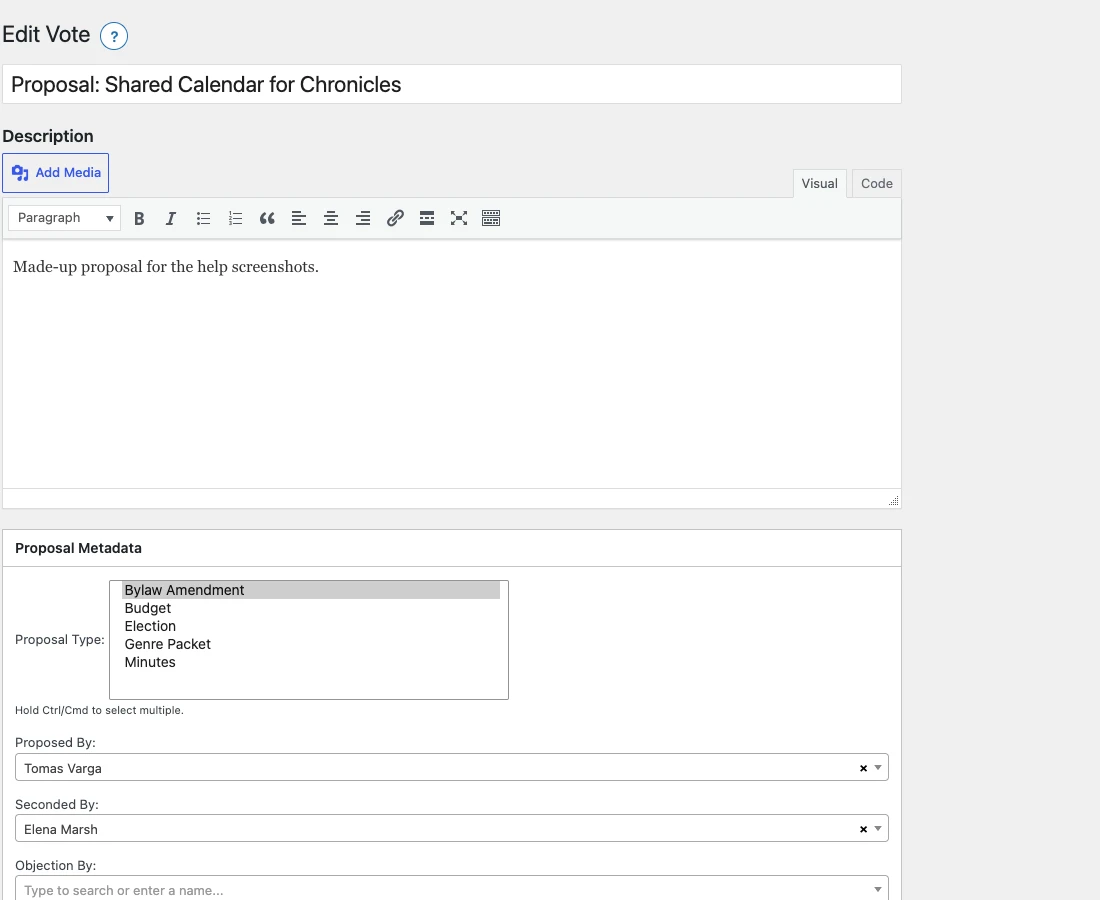
- Title and Description – what voters read first.
- Proposal Metadata
- Proposal Type – one or more classifications, such as Bylaw Amendment or Election. Hold Ctrl (Cmd on a Mac) to pick several.
- Proposed By and Seconded By – type to find a person, or type any name.
- Objection By – for a consent agenda item someone objected to, see below.
- Voting Type – how ballots are counted, see Voting Types.
- Voting Options – one row per choice or candidate, each with an optional description. + Add Option adds one; Fill with Approve / Deny / Abstain fills the usual three. Number of Winners is for the multi-seat types.
- Status & Schedule – Status, Opens and Closes.
- Access Control – Visibility: who can see the vote.
- Public (anyone can view), Private (logged-in users can view), or Restricted (specific roles can view) with Allowed Roles / Groups.
- Who Can Vote – Voting Eligibility: Anyone (public voting), Logged-in users only, or Specific roles/groups with Who Can Vote (Roles / Groups).
- Additional Vote History Viewers – roles that can see how related roles voted.
- Load from template and Apply, under each role list, fill it from a saved set, see Role & Classification Templates.
- Vote Settings
- Majority Threshold – Simple Majority (50% + 1), 2/3, 3/4, or a custom percentage.
- Allow voters to change their vote, Show results while voting is open, Anonymous voting (hide voter names in results) and Allow voters to add an optional comment with their vote.
- Email Notifications – Notify when vote opens, Remind 1 day before close and Notify when vote closes (with results), each with its own recipients (blank uses the defaults from Settings), and Allow voter email confirmations.
- Admin Note – a note or rationale, shown on the results page if Show this note publicly on the results page is ticked.
- Create Vote or Update saves; Delete removes the vote for good.
Role lists #
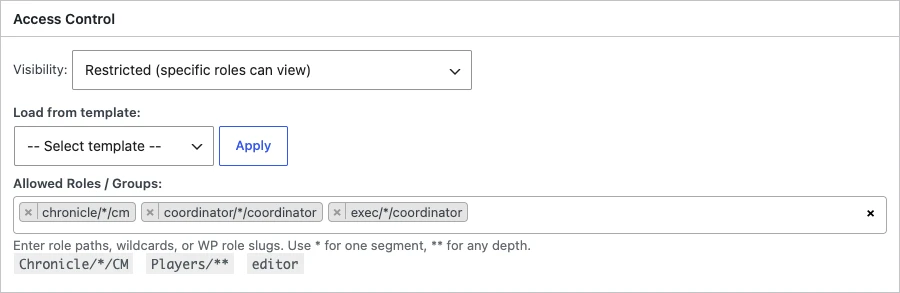
Each entry goes in as its own tag: a role path such as chronicle/mckn/cm, or a pattern. * stands for any one part (chronicle/*/cm is every chronicle's CM) and ** for any number of parts. A WordPress role name such as editor works too.
Common tasks #
Set up a vote #
- Click Add New.
- Fill in the title, the description and who proposed and seconded it.
- Pick the Voting Type and add the options.
- Set Opens and Closes. A new vote starts with opening in a week and closing a week after that, at midnight.
- Set who sees it and who votes on it, from a template or by hand.
- Click Create Vote. With a future opening date, it's Scheduled and opens on its own.
Turn an objected consent item into a full vote #
- Open the consent agenda item.
- Type the objector's name in Objection By.
- Click Update. The item becomes an Approve / Deny / Abstain vote, and voters can change their ballots.
Things to know #
- Visibility decides who sees the vote; Voting Eligibility decides who can vote. A restricted vote needs both filled in.
- A role match goes by each member's roles from sso.owbn.net as this site last read them. A member given a new role picks it up by signing out and in again.
- Site admins can always see and vote on every vote. Their ballot is labelled with their nearest matching role, or Administrator.
- Ballots record the option's text. Renaming or removing an option after people have voted spoils their ballots; withdraw the vote and start a new one instead.
- A draft never opens on its own, whatever its opening date.
Troubleshooting #
- "Title is required." or "At least two options are required." Fill them in and save again.
- "Closing date must be after opening date." Fix the dates.
- A member can't see or vote on the vote. Their roles don't match Allowed Roles / Groups or Who Can Vote (Roles / Groups). Check the role paths, and have the member sign out and in again.