
Regulation Rules #
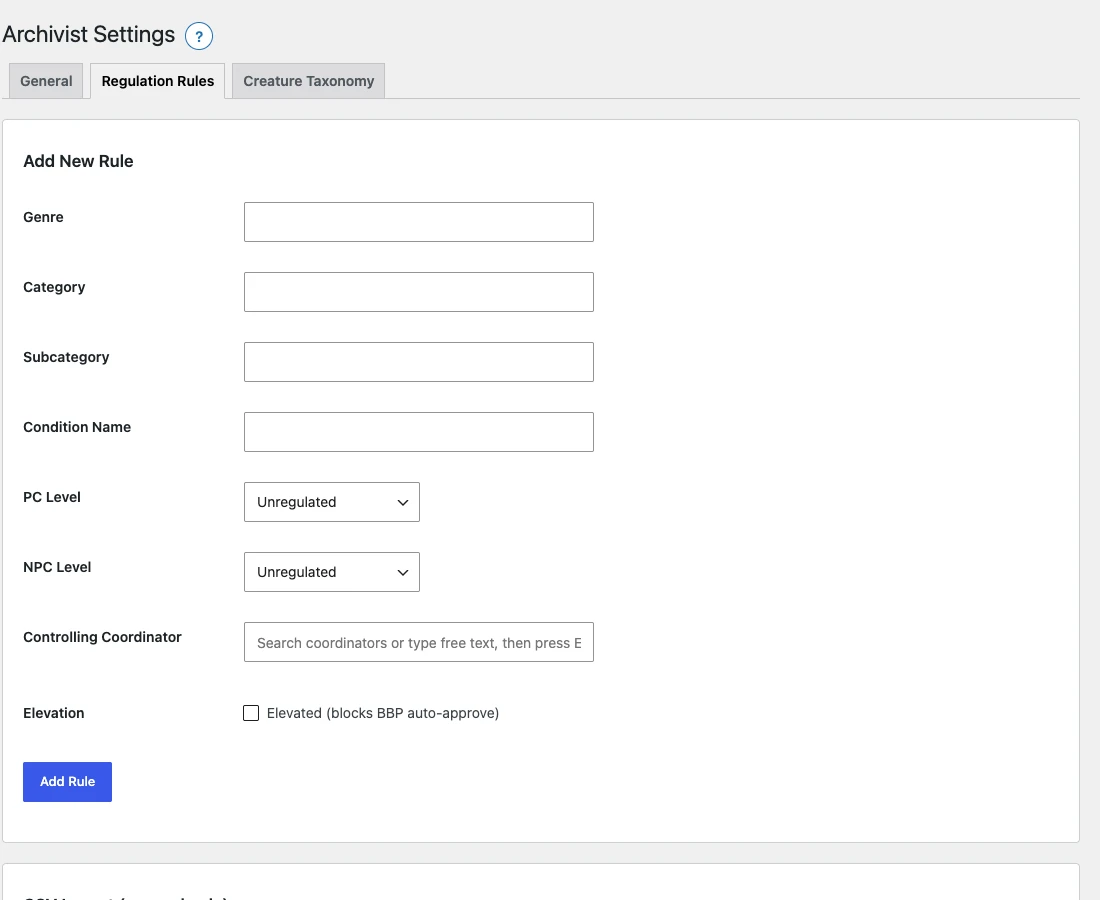
The rules that say what a request needs: which Coordinator controls an item, and whether it is unregulated, needs a Coordinator told, needs a Coordinator's approval, needs a council vote, or is disallowed.
Who can use this #
Site admins on the Archivist site. Members see the rules a request falls under on the request's page, and pick them on R&U forms.
How to get there #
On archivist.owbn.net, wp-admin → Archivist → Settings → Regulation Rules tab.
The screen #
- Search and the list – ID, Ref, Genre, Category, Subcategory, Condition, PC Level, NPC Level, Coordinator, Elevated and Active.
- Add New Rule – Genre, Category, Subcategory, Condition Name, PC Level and NPC Level (Unregulated, Coordinator Notify, Coordinator Approval, Council Vote or Disallowed), Controlling Coordinator, and Elevation.
- CSV Export – Download CSV saves every rule.
- CSV Import (append only) – Import CSV adds the rows in a file.
- CSV Sync (smart upsert) – Sync CSV updates rules that match and adds the rest.
Common tasks #
Add a rule #
- Click Add New Rule, fill it in, and set the levels and the Controlling Coordinator.
- Save; the rule shows in the Regulation Rules picker on R&U forms.
Update many rules at once #
- Download CSV, edit it, and Sync CSV it back.
Things to know #
- A request's Coordinator Review goes to the rule's Controlling Coordinator.
- Elevated stops a timed step from approving itself.
- A rule's Ref is the bylaw it comes from; requests show it.
Troubleshooting #
- A rule doesn't show in the picker. It is inactive.
- A Coordinator Review went to the wrong office. Check the rule's Controlling Coordinator.