
Bulk Edit #
Renumber a section, take a clause out and move the ones after it up, or put clauses back under the parents their titles name, without editing each clause by hand.
Who can use this #
Site admins.
How to get there #
wp-admin → Bylaw Clauses → Bulk Edit (the screen is titled Bulk Edit Bylaw Clauses).
The screen #
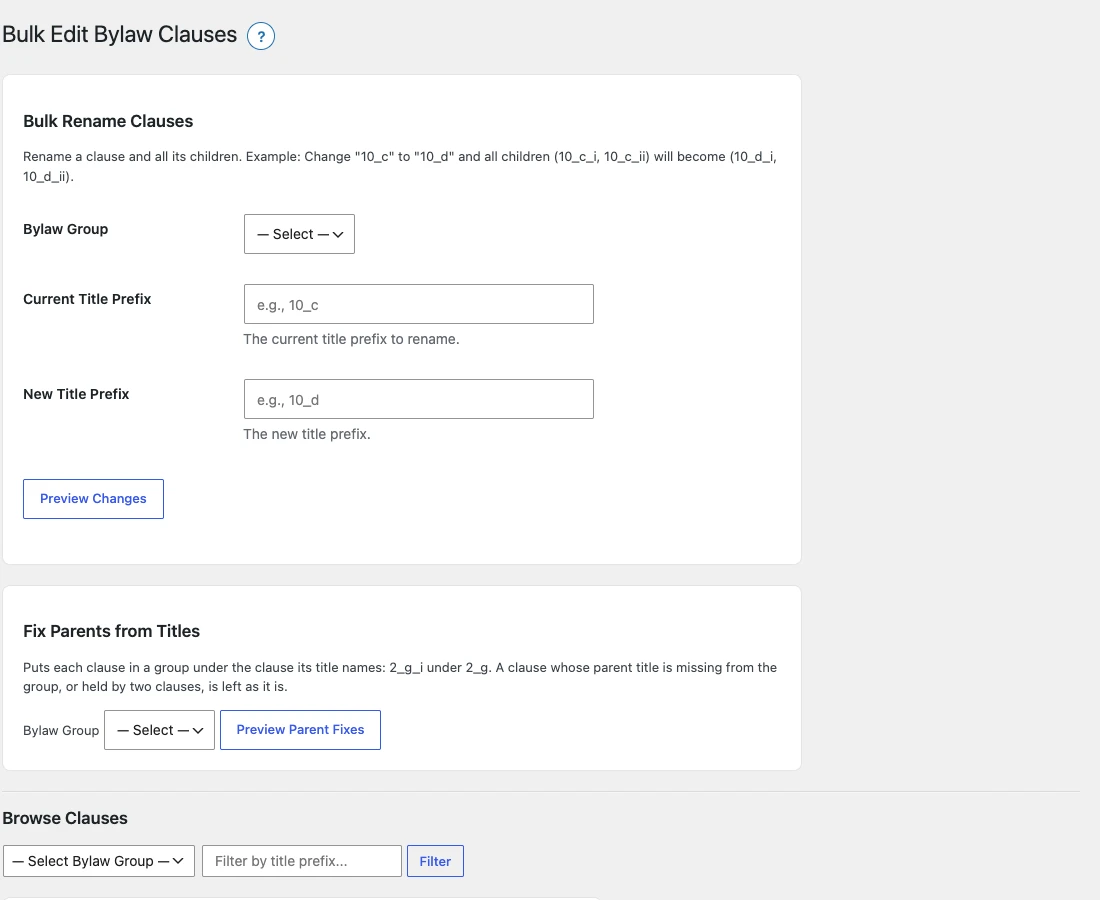
Bulk Rename Clauses
- Bylaw Group, Current Title Prefix (such as
10_c) and New Title Prefix (such as10_d). - Preview Changes lists every clause that would be renamed, from Current Title to New Title, with its Section ID and Parent.
- Execute Rename does it. It can't be undone.
Fix Parents from Titles
- Pick a Bylaw Group and click Preview Parent Fixes: every clause whose parent doesn't match its title, with its Parent now and its New parent.
2_g_ibelongs under2_g. - Apply Parent Fixes makes those changes, after you confirm.
Browse Clauses
- Pick a group and, if you like, the start of a title, then Filter.
- One row per clause, with Delete & Renumber… under Actions.
Delete Clause & Renumber Siblings
- Shows the clause to delete, and each later clause at its level that moves back by one, carrying its own sub-clauses.
- Confirm: Delete & Renumber moves the clause to the trash and renumbers the rest.
Common tasks #
Renumber a section #
- Pick the Bylaw Group.
- Type the Current Title Prefix and the New Title Prefix.
- Click Preview Changes and read the list.
- Click Execute Rename.
Put a group's clauses back under the right parents #
- Under Fix Parents from Titles, pick the Bylaw Group.
- Click Preview Parent Fixes and read the list.
- Click Apply Parent Fixes and confirm.
Delete a clause and close the gap #
- Under Browse Clauses, find the clause and click Delete & Renumber….
- Read which clauses will move.
- Click Confirm: Delete & Renumber.
Things to know #
- A rename changes each clause's title and its Section ID together; the preview shows both.
- Delete & Renumber won't delete a clause that has sub-clauses. Delete or move them first.
- The deleted clause goes to the trash, so it can be restored, but the renumbering isn't undone with it.
- Fix Parents from Titles only looks inside the group you pick. A clause whose parent title isn't in the group, or is held by two clauses there, is left alone; the preview counts them.
- Fixing parents can't be undone in one click; read the preview first.
Troubleshooting #
- "No clauses found with prefix …" Check the group, and type the prefix with underscores.
- "Conflict: … would become … which already exists." A clause with the new number is already there. Move it out of the way first.
- "… has … sub-clause(s). Delete or move them first" The clause still has children.
- "… has a non-sequential section ID … and can't be auto-renumbered." That clause's number doesn't follow the sequence; renumber it by hand.