
Submission Rules #
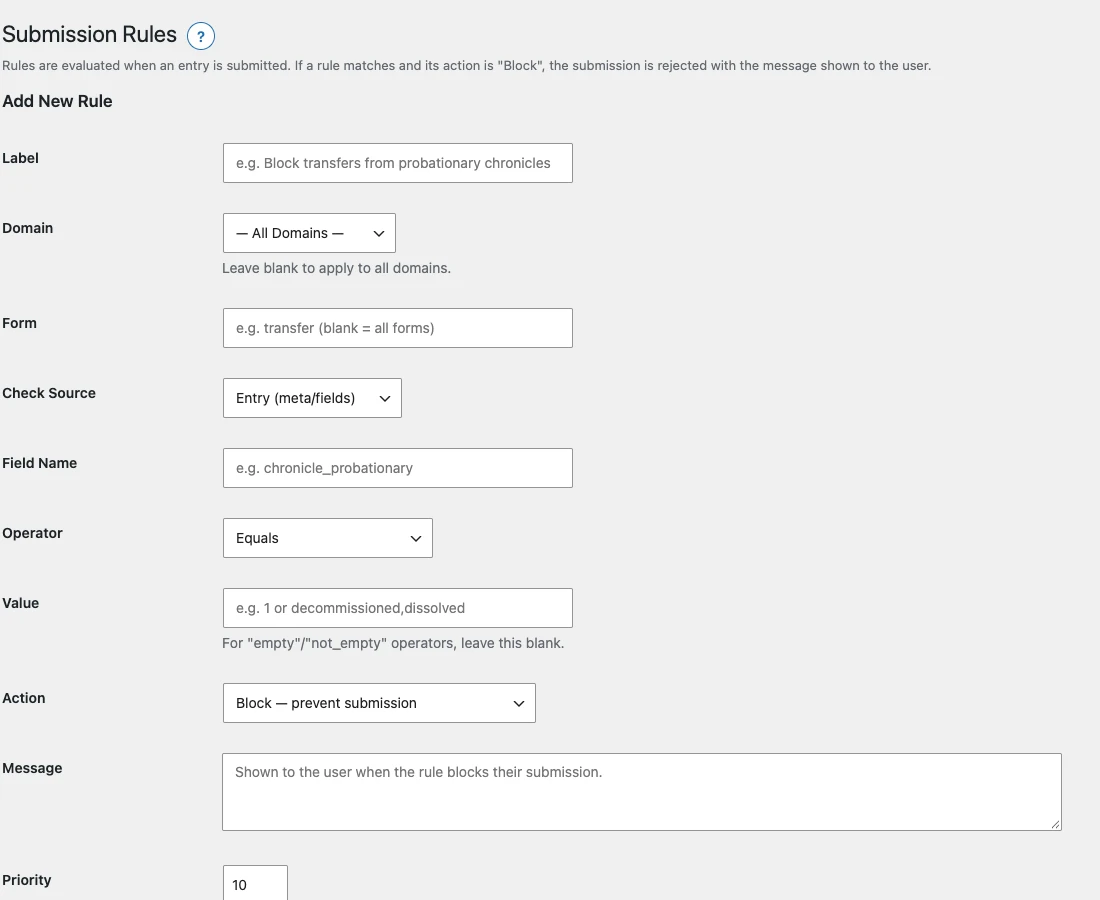
Checks that run when a member files a request: block it, warn about it, or require something before it goes in.
Who can use this #
Site admins on the Archivist site.
How to get there #
On archivist.owbn.net, wp-admin → Archivist → Rules.
The screen #
- Current Rules – each rule with its domain, form, check and action, and Search.
- Add New Rule and Edit Rule:
- Label – what the rule is for, such as "Block transfers from probationary chronicles".
- Domain and Form – where it applies; leave Domain blank for every domain.
- Check Source – what it reads: Entry (meta/fields), the request's answers; Character (registry), the character's record; or Chronicle (post meta), the chronicle's record.
- Field Name – the answer or field to check.
- Operator – Equals, Not Equals, In (comma-separated), Not In (comma-separated), Is Empty or Is Not Empty. Leave Value blank for the empty checks.
- Value – what to compare with, such as
1ordecommissioned,dissolved. - Action – Block — prevent submission, Warn — allow but show warning, or Require — must meet condition to proceed.
- Message – shown to the member when the rule acts.
- Priority – lower numbers are checked first.
- Rule is active, then Add Rule or Update Rule.
Common tasks #
Stop a kind of request #
- Add a rule with Action set to Block, a clear Message, and the condition.
- Read the rule back in the list; it applies from the next request anyone files. Don't file a test request: a request stays as a record, and a blocked one leaves a half-saved row.
Things to know #
- A rule naming a form slug or field that doesn't exist never fires and shows no error. Test every new rule.
Troubleshooting #
- "You do not have permission to manage rules." Rules are for site admins.
- A rule never fires. Check the form's slug and the field name against Forms and Form Fields.