
How a Request Moves #
The steps a request goes through after you file it, who has each step, and what happens when it is approved.
Who can use this #
Everyone who files or reviews requests. This page explains what the Step: line and the History on A Request's Page mean.
How to get there #
This is a reference page. Each request's own page shows the step it is at, who has it, and its history.
The steps #
| Step | Who has it | When |
|---|---|---|
| Submission | You, the filer | Where every request starts, and where it comes back when it is sent back to you |
| Staff Review | The HST of the character's chronicle; when it has no HST, its CM, and when it has no CM, its Staff (for Player Actions, the HST or the CM) | On most requests; skipped on Custom Content and R&U Requests filed by the Coordinator of the office they belong to |
| Coordinator Review | The Coordinator of the office the item belongs to | When the item needs a Coordinator's approval; a request can need several, and each one approves before it moves on |
| Gaining Chronicle Review | The HST of the chronicle a character is moving to | Transfers |
| Gaining Coordinator Review | The Coordinator of the office a character is moving to | Transfers to a Coordinator office |
| Membership Review | The Membership Coordinator and their staff | Creating, decommissioning or changing the standing of a chronicle |
| Executive Review, then Council Vote | The Head Coordinator | Global disciplinary actions |
| Staff Comment & Signature, then Player Comment & Signature | The HST, then the player | Binding agreements |
| Archivist Review | The Archivist | The last step of every request |
A step that doesn't apply to a request is skipped. Each domain runs these steps in order:
| Domain | Steps |
|---|---|
| Character Lifecycle | Submission → Staff Review → Gaining Chronicle Review or Gaining Coordinator Review (transfers) → Coordinator Review → Archivist Review |
| Custom Content | Submission → Staff Review → Coordinator Review → Archivist Review |
| Chronicle Actions | Submission → Membership Review → Archivist Review |
| Disciplinary Actions | Submission → Staff Review (chronicle DAs) → Executive Review → Council Vote (global DAs) → Archivist Review |
| Binding Agreements | Submission → Staff Comment & Signature → Player Comment & Signature → Staff Review → Coordinator Review → Archivist Review |
| Governance Records | Submission → Archivist Review |
| Player Actions | Submission → Staff Review → Coordinator Review (genre registrations) → Archivist Review |
Common tasks #
Follow your request #
- Open it from your Archivist Inbox or Dashboard.
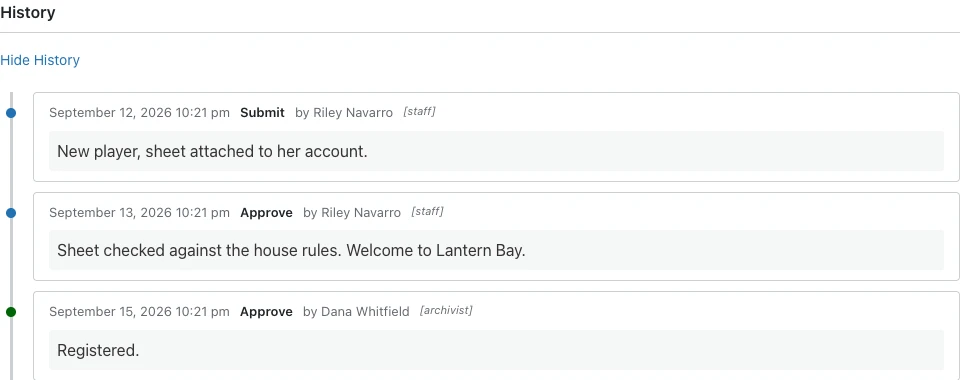
- Step: says where it is, Assignees says who has it, and the History (for its staff and up) shows what has happened.
Find what is waiting on you #
- Open your Archivist Inbox. Requests at a step you have come first.
Move a timed Coordinator Review along #
- Open the request and click Bump. A Coordinator Review approves itself at the first hourly check after 14 days once it has had two bumps, unless a rule on it is Elevated. Only the person who filed the request can bump it.
Things to know #
- When a request reaches a step, everyone assigned to that step gets an email with a link that signs them in and opens the request. Whoever moved it there isn't emailed. Your Inbox still lists everything waiting on you.
- Position mail goes to the position, by what the request is about. Work for a Coordinator office goes to that office's address (for example, tremere@owbn.net). Work for a chronicle goes to its ST email: the HST's address on the chronicle's record, or the CM's {chronicle}-cm@owbn.net address. Work on your own character goes to your account email. The same rule decides where the result of something you filed goes: filed as a Coordinator or as Staff, or about something in your office or chronicle, it goes to that position's address. The subject names the position, so the mailbox keeps its history when the person changes. A position with no address on its record is emailed at the person's account email.
- Lines filed together move together. Several rules on one R&U Request make several lines, and the rows of a list filed from the submit page with Submit all are lines too, whatever their kind. Each line keeps its own number and goes to its own approvers. Lines made from one form's rules are grouped when they have the same approvers; the rows of a list are always grouped. A reviewer sees every line of the group on the request page but acts only on the lines assigned to them: approve every line waiting on them with one click, or veto a single line. Each approver gets one email, listing the lines waiting on them. The filer gets one email when lines are approved and one when a line is vetoed.
- A Coordinator can bring in another. At Coordinator Review, Add a Coordinator asks one more office to approve, and the request waits for them too. The Archivist can do the same before its own step. When nobody holds the office yet, the History says so and the Archivist can approve for it.
- A request about an NPC a Coordinator office owns, with no chronicle, is reviewed by that office. Staff Review has no chronicle staff to go to, so it goes to the office's Coordinator and Sub-Coordinator. When one of them filed the request, Staff Review is skipped: nobody reviews their own request.
- When a request is approved or denied, the person who filed it gets an email; a denial carries the reason. When it is sent back, whoever has it next gets an email.
- An approved request shows under Registry Entries on the Character Record. When the item belongs to a Coordinator office, the office gets access to the character.
- Hold stops a request and its timer; Resume starts the timer again where it stopped.
- A regulation rule marked Elevated stops a timed step from approving itself; a person has to act.
- The History shows each person what their part allows: the request's staff see staff entries, Coordinators see theirs and staff's, and the Archivist sees everything. Players don't see the History.
- A send-back goes to the step before, passing over any step that didn't apply to the request.
Troubleshooting #
- My request has sat at a step for days. Check Assignees on its page and ask them, or ask the Archivist.
- It skipped a step I expected. That step doesn't apply to this request; for example, Coordinator Review only runs when the item needs a Coordinator.
- It came back to Submission. Someone clicked Request Changes. Their note, in the Changes Requested box at the top of the request and in your email, says what to change; fix it and click Resubmit.