
Transfer #
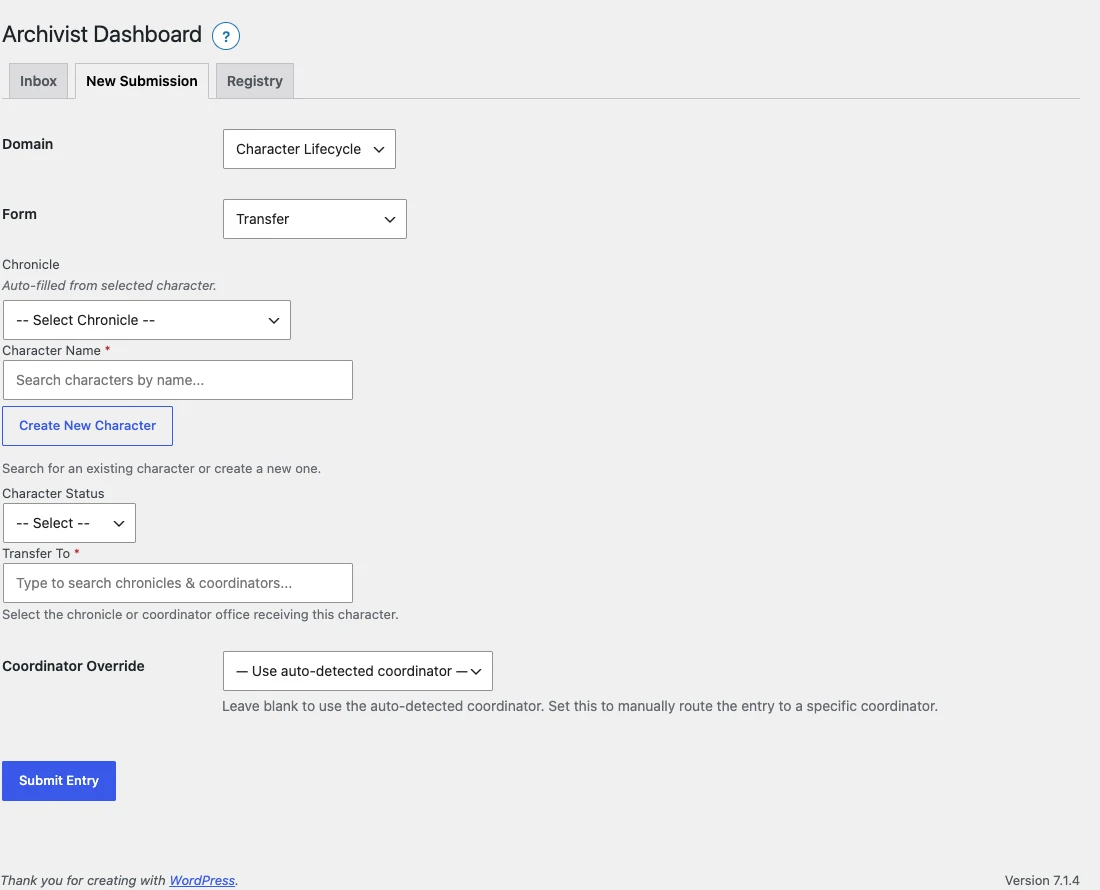
Moves a character to another chronicle, or to a Coordinator office.
Who can use this #
Filed by: The character's player, or its chronicle's staff.
How to get there #
On the website: the Archivist Submit page → Domain Character Lifecycle → Form Transfer. In wp-admin: Archivist → Workspace → New Submission tab.
The screen #
| Field | Required | What to enter |
|---|---|---|
| Chronicle | Yes | Search for the chronicle. |
| Character Name | Yes | Search for an existing character or create a new one. |
| Character Status | – | Pick one. Choices: Active, Dead, Inactive, Removed IC, Removed OOC. |
| Transfer To | Yes | Select the chronicle or coordinator office receiving this character. |
The form fills in Submitted By and your email from your account.
Reviewers fill in their own fields on the request's page: Review Note, Coordinator Note, Resolution Notes, Resolution Type.
Where it goes #
Submission → Staff Review (the chronicle's HST) → Gaining Chronicle Review (the receiving chronicle's HST), or Gaining Coordinator Review (the receiving office's Coordinator) for a move to a Coordinator office → Coordinator Review, when a rule needs a Coordinator → Archivist Review.
Common tasks #
File it #
- Open Submit a Request and pick Character Lifecycle, then Transfer.
- Fill in the fields above; the form stars the ones marked Yes.
- Click Submit Request and follow it from its page.
Things to know #
- The receiving chronicle's HST reviews it too, at Gaining Chronicle Review. A move to a Coordinator office goes to that office's Coordinator instead, at Gaining Coordinator Review.
- A transfer into a Coordinator office has no gaining chronicle to review it; ask the Archivist before you file one.
Troubleshooting #
- "Submission failed. Please check the form and try again." A required field is empty. Fill in every field marked Yes above.