
A Request's Page #
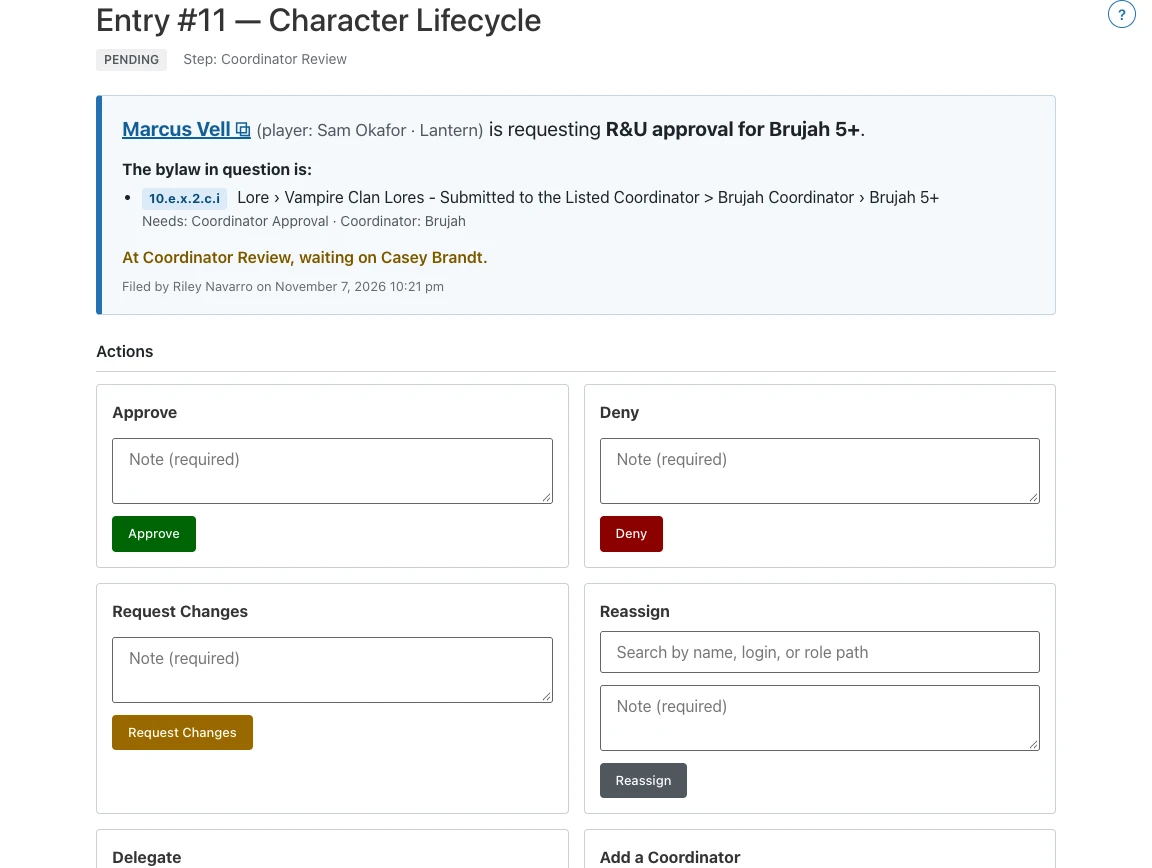
One request: what was asked, where it stands, who has it now, and everything that has happened to it.
Who can use this #
The person who filed the request; anyone it has been given to; whoever holds the role its current step needs; its chronicle's HST, CMs, staff and ASTs; the Coordinators and Sub-Coordinators of the offices it belongs to, including offices a chronicle report flags; the player of the character it is about; and the Archivist's office and the exec offices that oversee OAT. Disciplinary Actions are also open to every HST, CM, staff member, Coordinator and exec officer, as on Reports. Anyone else sees "You do not have access to this request." Which buttons you get depends on your part in it:
| You are | You can |
|---|---|
| Given the current step (by name or by role) | Approve, Deny, Request Changes, Reassign, Delegate |
| Given a Coordinator Review step, or on the Archivist's team before the Archivist step | Add a Coordinator, as well |
| Given the current step of a request filed with other lines | Approve All Lines, and Veto on each line |
| The person who filed it | Cancel / Withdraw, Bump; Resubmit when it is sent back to you |
| Given the current step and on the Archivist's team | Log, as well |
| A site admin on the Archivist site | Hold, Extend Timer; Council Override on a denied request |
| Given the current step of a held request, or a site admin on the Archivist site | Resume |
How to get there #
- On the website: your Archivist Inbox or Dashboard → click the request. Filing a request opens its page.
- In wp-admin: Archivist → Workspace → Inbox tab → click the request.
The screen #
From the top down:
- The header – the request's form and number, its status (pending, held, approved, denied, cancelled, auto-approved or auto-denied) and Step:, the step it is at. Watch follows the request: it then shows in your inbox, you get an email when it moves on or finishes, and the button reads Watching.
- The summary – the box under the header, in plain words: who is asking for what, for example "Marcus Vell (player: Sam Okafor · Lantern) is requesting R&U approval for Brujah 5+." The character's name is a link that opens the character's record in a new tab. Under it, The bylaw in question is: lists each rule the request falls under, with its clause number, its wording, the approval it needs and the Coordinator who decides. Then comes where the request stands and who it is waiting on, and who filed it and when. A request about no character (a Chronicle Report, a governance record) says who is submitting it, and a request that rests on no bylaw has no bylaw line.
- Request submitted (only right after you file the request) – a green box with a Submit another button for the same form.
- Changes Requested (only when the request was sent back) – what to change, and who asked.
- Lines in this request (only when several lines were filed together) – a row for each line, with its number, what it is about and where it stands. You see every line of the group, but you can open, and act on, only the lines assigned to you. A vetoed line says Vetoed and gives the reason, when there is one. Reviewers get a Veto box on each open line they can act on. When the lines are about more than one kind of request, a Kind column says which, and when they are about more than one character, a Character column says which.
- Active Timer – when the step approves or denies itself if nobody acts, with the date it Expires.
- Actions – the buttons you have, each with a note box.
- History – every action, with who took it, when, and the note, for the request's staff, Coordinators and the Archivist; a player sees the request's status and step in the header and the summary instead. Show History and Hide History fold it.
- Details – the Originator, Chronicle, Coordinator Genre, Created and Updated, then everything the form asked, as filed. Below it: Linked Regulation Rules, the rules the request falls under, with each rule's ID, Genre, Category, Condition, PC Level and whether it is Elevated; Assignees, who has had each step, and their status; and Linked Entries, the Parent: request and any requests filed from this one.
Common tasks #
Approve, deny or send back a request #
- Open the request from your inbox.
- Read the summary at the top, then Details and the Linked Regulation Rules for the whole picture.
- Write a note, then click Approve, Deny or Request Changes. Request Changes sends it back to an earlier step, often to you as the filer.
Fix and resubmit a request sent back to you #
- Open the request; the Changes Requested box under the summary says what to change. The same note comes by email.
- Change what's asked, add a note, and click Resubmit.
Pass a request to someone else #
- Write a note.
- Reassign gives the step to someone else for good. Delegate asks someone else to look, then it comes back to you.
- Search for the person and pick them.
Approve several lines at once, or veto one #
- Open any line of the request. Lines in this request lists every line.
- To leave a line out, click Veto on its row, add a reason if you want to (it is optional, and the person who filed the request sees it beside the line), and click Veto this line. Only that line is closed; the others carry on.
- In Approve All Lines, write a note and click the button. Every line waiting at this step that you can approve moves on together; a line assigned to someone else is left for them.
Bring in another Coordinator #
- Open the request while it is at Coordinator Review. The Archivist can also do this at any step before Archivist Review.
- In the Add a Coordinator box, tick the offices whose power, rule or item this request uses. Offices already on the request are ticked and locked.
- Write a note saying why, and click Add a Coordinator.
- Each office you add has its Coordinators emailed right away, and the request waits for every office to approve. Your note shows in the History.
Withdraw your own request #
- Write a note and click Cancel / Withdraw.
Things to know #
- Every action except Bump needs a note.
- Bump counts toward the bumps some timed steps need before they approve or deny on their own. It works only while the step has an active timer, and it doesn't move the deadline.
- The History shows each person what their part allows: the request's staff see staff entries, Coordinators see theirs and staff's, and the Archivist sees everything. Players don't see the History.
- What happens after you approve depends on the form; see How a Request Moves.
Troubleshooting #
- "Please log in to view this entry." Sign in first.
- "You do not have access to this request." It isn't part of your work: you didn't file it, it isn't at your step, and it isn't from your chronicle or for your office. Ask whoever sent you the link, or the Archivist.
- "Entry not found." No request has that number.
- "You cannot take that action on this request." The request has moved on, or the step isn't yours. Reload the page to see the buttons you have now.
- "A note is required for this action." Write a note before you click.
- "No active timer to bump." The step has no timer running, so there is nothing to bump.
- I have no buttons. The current step isn't yours. Assignees shows who has it.