
Reports #
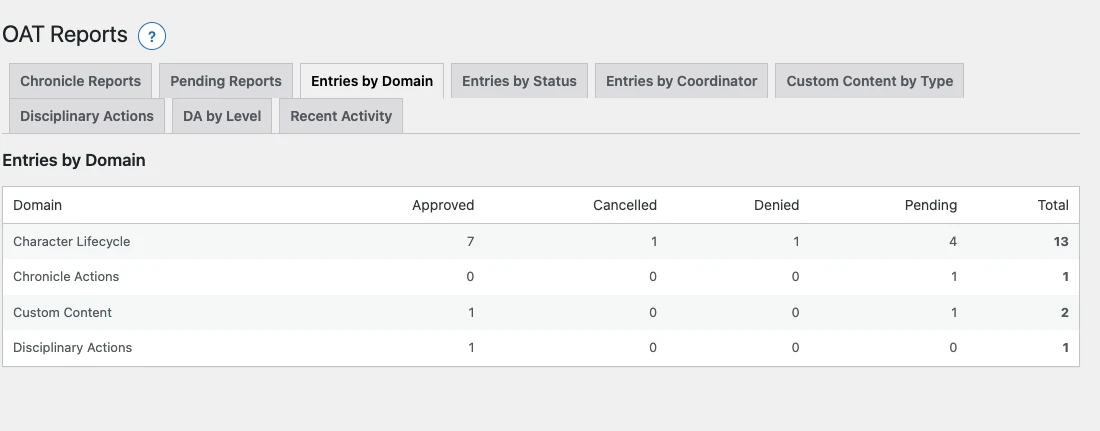
Counts and lists drawn from the registry and the requests: chronicle reports, entries by domain and status, custom content, disciplinary actions, and character totals.
Who can use this #
HSTs, staff and CMs see their own chronicles; Coordinators and Sub-Coordinators see their own office. Everything is open to:
| Report screen | Everything for |
|---|---|
| OAT Reports (every OWbN site) | Site admins, the Archivist and the Archivist's staff, the Membership Coordinator, the Head Coordinator, the AHCs, the Web Coordinator and the Admin office |
| Details (the Archivist site) | The same |
Players and ASTs have no reports.
How to get there #
- OAT Reports: on archivist.owbn.net, wp-admin → Archivist → Reports. The other OWbN sites don't have it.
- Details: on archivist.owbn.net, wp-admin → Archivist → Details. If your menu doesn't show it, open archivist.owbn.net/wp-admin/admin.php?page=oat-reports.
The screen #
OAT Reports has a tab per report:
- Chronicle Reports – one row per chronicle, labelled "City, State, Country: Name"; click a row for its reports, newest first. A filter box matches name, city, state and region.
- Pending Reports – chronicle reports nobody has decided yet, oldest first, each marked "Awaiting archivist" or "Sent back to submitter".
- Entries by Domain, Entries by Status and Entries by Coordinator – request counts.
- Custom Content by Type – approved custom content, by kind.
- Disciplinary Actions and DA by Level – disciplinary actions, and how many at each level.
- Recent Activity – the latest requests and actions.
Details has a tab per list: All Characters, Active Only, By Region, By Chronicle, By Player, By Creature Type and By R&U Classification. Each tab exports to CSV. A Coordinator sees the items their office owns; Show All adds the rest on the same characters.
Common tasks #
Find a chronicle's reports #
- Open OAT Reports → Chronicle Reports.
- Type part of the chronicle's name, city or state into the filter, and click its row.
See which chronicle reports still wait #
- Open Pending Reports.
Export a list #
- Open Details and the tab you want.
- Click Export CSV.
Things to know #
- The two screens draw on the same requests; Details lists characters and R&U items, and OAT Reports counts requests.
- Your reach on each screen comes from your roles, so a new role shows within about fifteen minutes or at your next sign-in.
- A Coordinator also sees, under Chronicle Reports, every report that ticked their office in Notify Coordinators; the email those reports send links here.
Troubleshooting #
- "You do not have permission to view reports." Reports are for staff, Coordinators and the exec offices.
- A report shows only part of OWbN. It shows what your role reaches; see Who can use this.